



Jaya9 Mobile at a Glance
| Item | Details |
| Application | Jaya9 |
| OS | Android; the current installer declares Android 5.0 as its installation minimum |
| Installer | APK, approximately 4.17 MB; version 1.0 |
| Region | Bangladesh |
| Account Type | Existing website account or new registration |
| Interface Language | English and Bengali on the mobile website |
| Currency | Bangladeshi taka, shown as ৳ BDT in the Bangladesh interface |
| Update Source | The download control at jaya9bangla.com |
| Support | 24/7 customer service: Live Chat and [email protected] |
| Mobile Site Option | Browser access, including on iPhone |
Installer details are for the file available on 27 October 2026. Leave more space than the download size — Android needs room to unpack it. This file requires Android 5.0 or higher.
The English/Bengali selector belongs to the website interface. On an iPhone, use that browser version: an APK is an Android installation file.
Before You Download
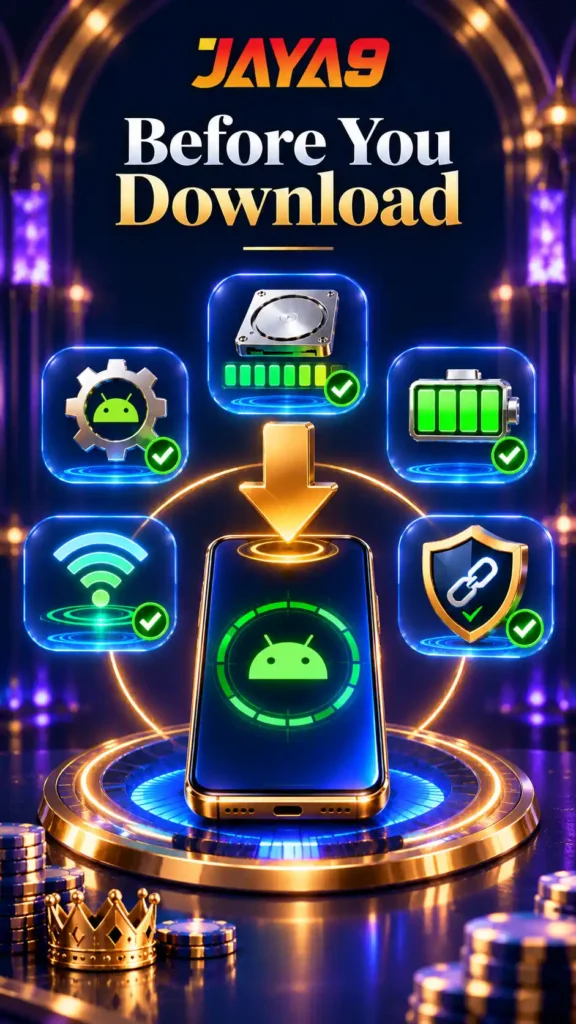
A few checks now can save you a second download later:
- Check the Android version under Settings → About phone.
- Open Storage and clear space if the phone is almost full.
- Charge the battery if it’s low before you start.
- Test the connection by opening a couple of normal webpages.
- Get the download from jaya9bangla.com.
If everything looks fine, you can go ahead and download. It only takes a minute to check.
Is Your Phone Ready?
Check both the system version and available storage. Having enough room for the file does not always leave enough for Android to unpack it.
If pages take several attempts to open, wait for a steadier connection. Pausing a large background download may help. There is little benefit in repeatedly fetching the installer while the same connection keeps dropping.
Check the Source
For a Jaya9 win app download, start from the platform’s homepage and use the app icon in the header. Check the complete domain before opening the file.
The same download route applies if you searched for a Jaya9 casino app. Membership information appears under Jaya Rank, which has its own menu entry within the service.
Leave a page that asks you to add unrelated software or redirects you somewhere unexpected. Use the platform’s own download control to get back on track.
Downloading the Installer
The header’s download link supplies jaya9_2024_new.apk. Let the Jaya9 APK finish downloading before opening it. A progress indicator may appear in the browser even when the page itself looks unchanged.
Find the completed file in the browser’s Downloads menu or your phone’s Downloads folder. If you searched for “Joya 9 APK”, the filename above is the useful detail to recognise. The application name presented during installation should be Jaya9.
Don’t keep tapping the download button while the first one is still running. A bunch of near-identical copies makes it harder to tell which one finished.
Installation Checklist
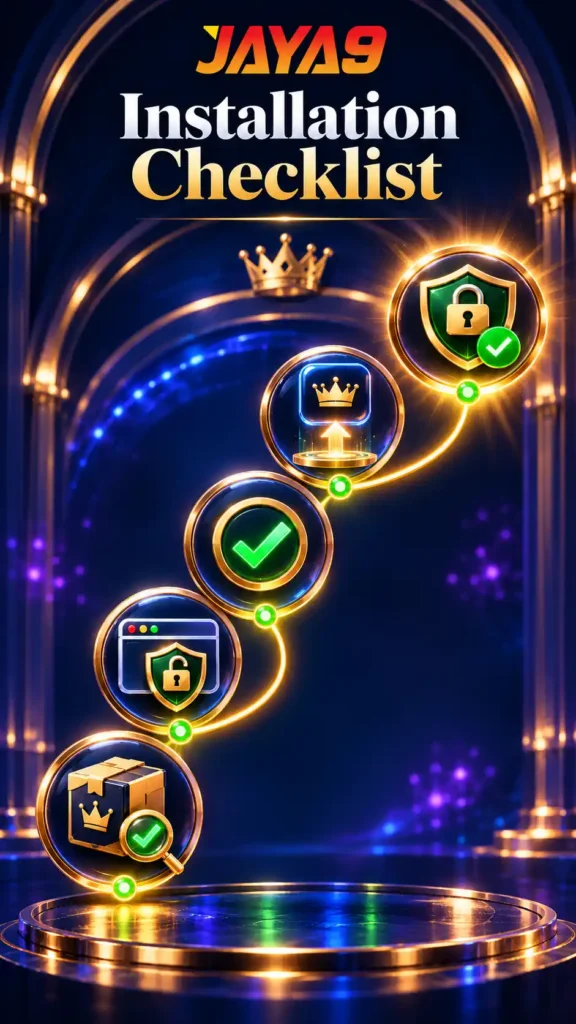
With the completed file ready:
- Open it and review the application name.
- If Android asks, allow the browser or file manager handling it to install applications.
- Return to the installer and confirm.
- Wait for the completion message, then launch Jaya9.
- Remove the installation permission you granted to the browser or file manager when you no longer need it.
What the Android Warning Means
On newer Android versions the install permission usually goes to the browser or file manager that’s opening the file. You might get sent to Settings and then need to come back to the install screen.
Keep Play Protect on. Allowing installs from a source and a warning that the software might be harmful are two different things — read the wording before you continue.
Check the First Launch
Give the Jaya9 app a short first run before attempting a payment. Open a category, return to the menu and bring up Login.
Look for readable text, responsive buttons and content that finishes loading. A logo alone is not much of a connection test. Moving between two screens tells you more.
Getting Into Your Account
Use the account you already have. For the Jaya9 app login, enter the same username and password you use on the site. Reinstalling doesn’t mean you need to register again.
Use Your Website Credentials
No need for a new account in the Jaya9 login app. The sign-in form has Username and Password fields.
Once you’re in, check your BDT balance and recent account records before you touch the payment controls. Password rejected? Check letter case, keyboard language and any extra space from pasting. Then use recovery instead of guessing.
Register for the First Time
Open Sign Up. First step asks for Username, Password and Confirm Password. Select Next to continue with the fields shown.
Read the terms before you finish and save your credentials somewhere private. One account per player — if you already have one and forgot the password, recover that instead.
Recover Access
Choose Forgot Password. Enter the visual Verification Code and the phone number on your account (form starts with the Bangladesh prefix +880). Hit Request OTP, enter the code in Otp No and continue with Reset.
Can’t use that number or the process stops? Open Live Chat or email [email protected]. Say which step failed, and keep passwords and one-time codes private.
Casino, Cricket and Account Tasks

The main menu separates casino categories from Cricket and Sportsbook. Start with the section you want; you do not need to work through the homepage’s featured cards.
Find a Casino Game
Slot Games, Live Casino and Table Games each have a Search games field and provider filters. Typing Super Ace in the slot search brings up related titles, including Super Ace Deluxe and Super Ace II. Read the full name before choosing a result.
In the Jaya9 live app, start with Live Casino for dealer tables and live game shows. Provider filters include EVO, PP and SEXY.
Table Games is a separate category, with titles such as Andar Bahar, Teen Patti and Rummy. Open a game’s rules and check its stake range before committing funds.
Cricket and Sportsbook
For cricket, the lobby offers Exchange and 9Wickets Pro under the BETSWIZ and 9Wicket filters. Sportsbook leads to IBC Sports. Selecting Exchange while signed out brings up Login.
In the Jaya9 bet app, open the provider, pick the event and market, then check the selection, odds and stake in the betting screen. Is the market for the whole match or just part of it? Make sure.
Live cricket prices can shift before a selection is accepted. Use a stable connection and double-check the final price. Acceptance shows up as a transaction ID and a matching history entry. Submission interrupted? Check that record before you try again.
Balance and BDT Payments
Deposits and bonuses use a central wallet. To deposit, open Deposit, enter the amount and use Select Channel to choose the payment route.
Before using bKash or Nagad, check the payment notice and the selected channel’s instructions. Read the available hours, amount limits and any charges before confirming. Times marked GMT+6 are Bangladesh local time; payment availability hours are separate from processing times.
| Task | Check before continuing |
| Deposit | BDT amount, selected channel and its payment instructions |
| Withdrawal | Destination, available funds, applicable conditions and withdrawal password |
| Pending payment | Status and transaction reference before another attempt |
| Balance query | Recent entries, including deposits and bonus credits |
Withdrawal instructions include an amount and withdrawal password. Follow any account-binding prompts presented for the selected method. Keep the reference until the transaction is settled; it gives support something specific to trace.
Notifications and Personal Preferences
For Jaya9 bonuses notifications in the live app, start with Android’s settings. Find Jaya9 under Apps and review the notification controls available on your phone.
On the mobile site, pick English or Bengali with the language selector. Forgot the password? Use Forgot Password. Need to change profile details? Contact customer service. After a reset, update the saved password in your browser or password manager — autofill will keep sending the old one otherwise.
Update Checklist
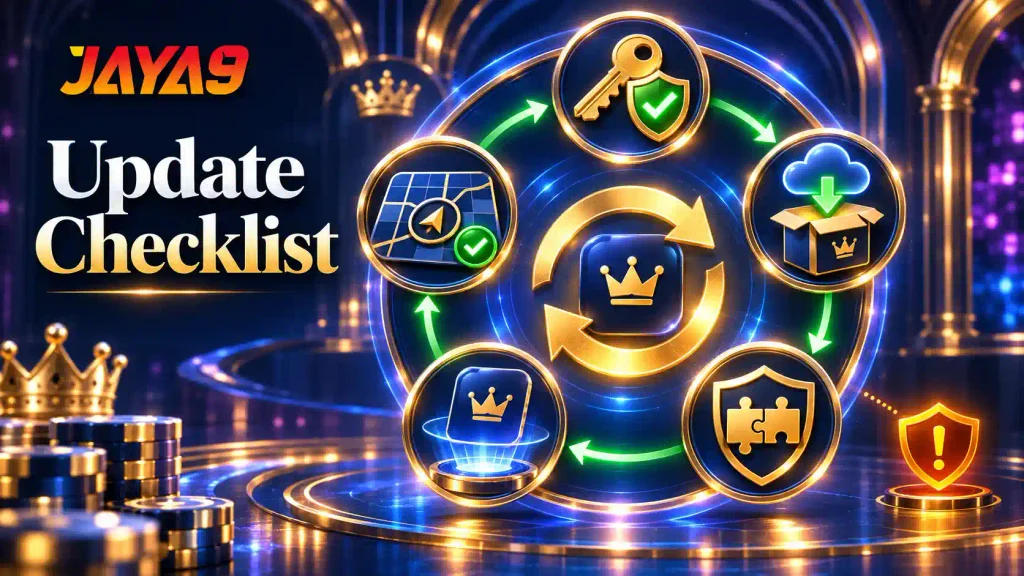
An update prompt is a reason to check for a replacement package. Slow loading alone may have a different cause, especially if ordinary webpages are struggling too.
- Confirm that you know your credentials and can use account recovery.
- Return to the platform’s current download control.
- Download a fresh Jaya9 APK and review the application name.
- Install over the existing copy if Android accepts it as a compatible update.
- Reopen it and check sign-in and navigation.
If Android reports a mismatch or proposes a separate application, stop and check with support. Deleting the existing installation immediately can make account access harder to sort out.
Before Reinstalling
A saved session can outlast your memory of a password. Check your Jaya9 app login details before uninstalling, especially if the phone has been signing you in automatically.
Make sure the account’s recovery number is still usable. Reinstallation may remove local settings and the saved session, so keep it for problems that remain after simpler checks.
Storage and Connection Tips
Old installers, duplicate videos and unused apps — good places to free up space. Remove files you recognise. Clearing cache removes temporary files. Clearing app data can sign you out as well.
In the Jaya9 bet app, wait until a submitted action finishes before tapping again. Connection drops? Pause background transfers or switch to a steadier network, then check your account records. Repeated taps make it hard to tell which actions went through.
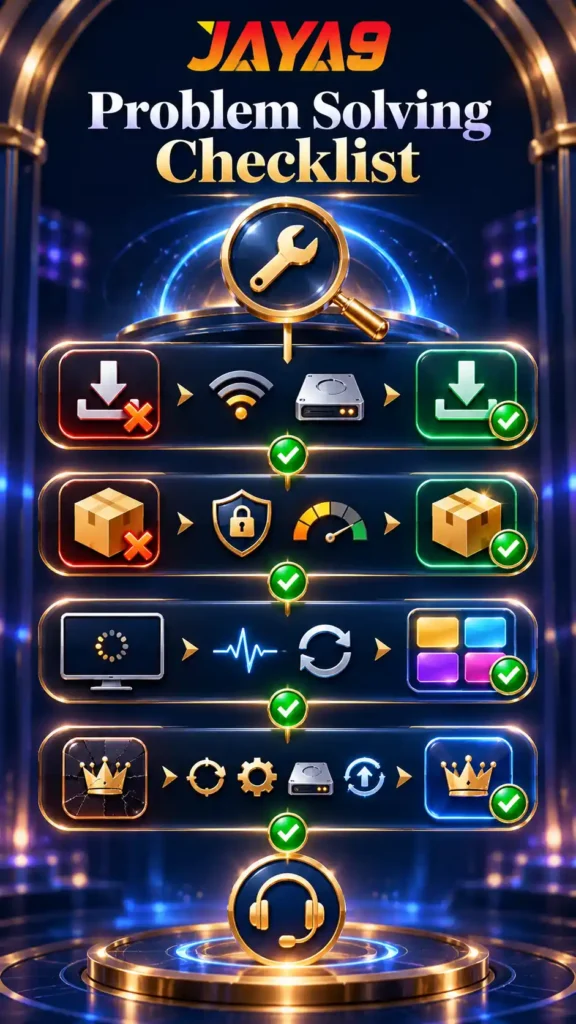
Problem Solving Checklist
Start with the point where things stopped. Read any error message and make one change at a time.
The File Will Not Download
A transfer that stalls can point to a weak connection or full storage. If it never starts, inspect the browser’s download message for a block and try opening another webpage. A temporary page fault may also clear later. Once the connection and storage are ready, remove the incomplete copy and retry from the platform.
The File Will Not Install
Android may show missing source permission, not enough space or an incompatible system version. An interrupted transfer can leave a damaged package. Use the error to see what needs fixing — repeating the same attempt doesn’t help much. If it points to an incomplete or damaged file, delete it and download a fresh copy.
Menus Open but Content Stays Blank
Catalogues sometimes briefly show No Game Found while content loads. Screen stays empty? Check the connection and compare it with the mobile website. If both fail on a working connection, contact support about availability. Only the app has the issue? Check for an update, close it completely and reopen it.
The Application Keeps Closing
Close the app, restart the phone and free up storage if needed. Then check for an update. Only reinstall after you’ve confirmed you can recover the account. A crash you can repeat is easier to investigate than “it doesn’t work”. Note the phone model, Android version and the screen where it closes, then send those details to customer service.
When the Mobile Site Is Enough
A browser bookmark may suit occasional use, a phone with little storage or a device that cannot install the package. It is also the straightforward route on an iPhone.
Use your existing account on the mobile website. Keeping a bookmark gives you a way back while an installation problem is being resolved, without another download.